Made to connect.
How do I create my first QR in the account?
Create the QR in the account where you plan to use it. It will then be available to that team and use that account’s features.
Before you start
Your role must allow creation, and the account needs an available slot for an active QR.
Step by step
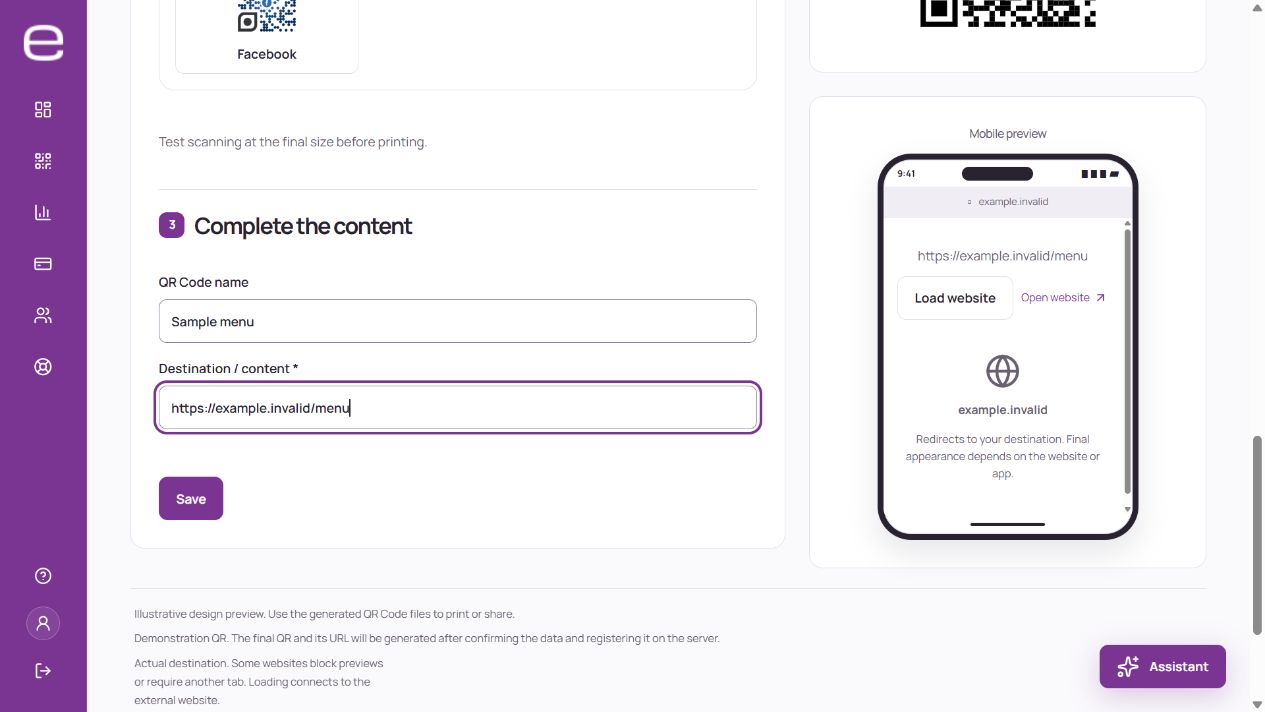
- Open QR Codes and choose New QR Code.
- Select an available type and enter the requested content. For a link, for example, check the full address.
- Review the name and preview. If you customize colors or a logo, keep the code readable.
- Save and wait for the confirmation shown by the system.
- Scan the QR with your phone and check that the expected content opens. Do this before downloading artwork for printing or sharing the code.
Can’t see the creation option?
Check the selected account, your role and the plan’s active QR limit.
If you used the website demo
The demo generates a direct QR in your browser. It does not save a dynamic QR in your account; use the steps above to create one.