Made to connect.
How to download, print and test a QR Code
Download the saved QR file from your account and test a sample on the final material before approving the print run. Reading it on screen does not replace that test.
1. Check and download the file
- Open the QR in the correct account and check its destination and current status.
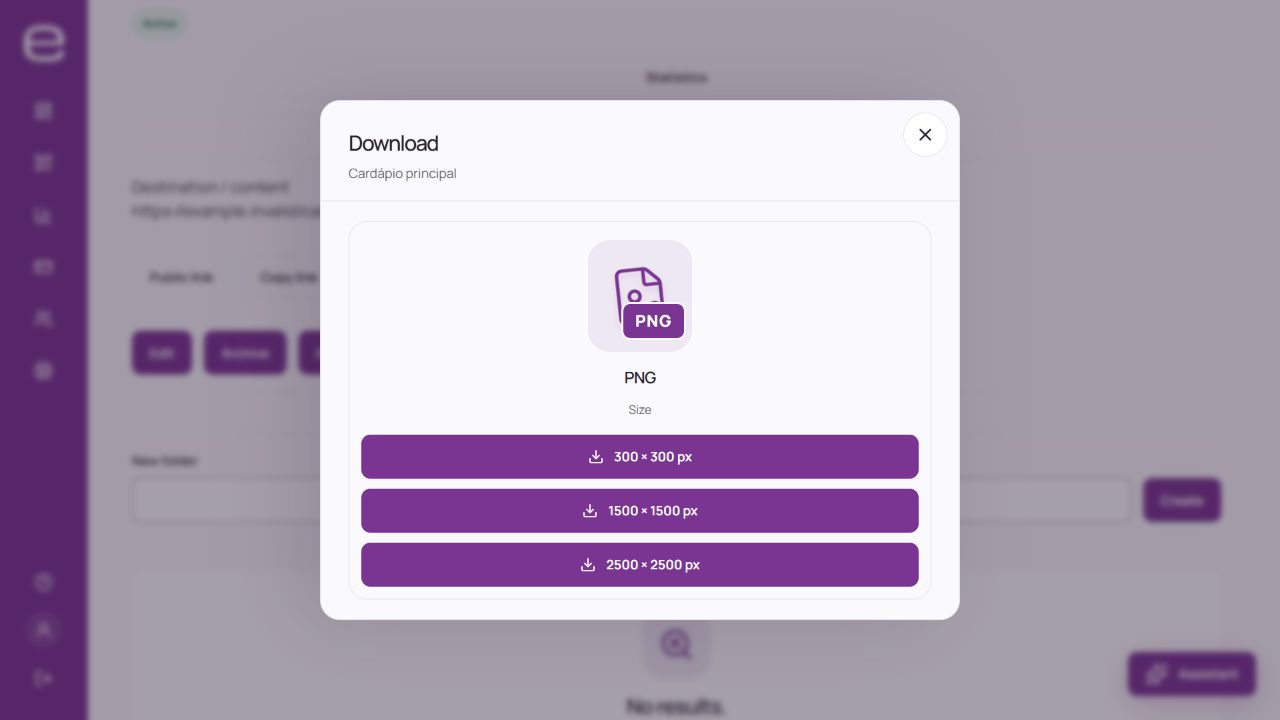
- Open the download options and choose a format and size available in your plan.
- Use the downloaded file in your artwork. Avoid replacing it with a screenshot of the preview.
2. Prepare the print
- Keep good contrast between the code and background.
- Leave a clear area around the symbol, without text, borders or artwork entering the margin.
- Keep its proportions: do not stretch, crop or cover parts of the code.
- Choose the size for the reading distance, symbol density and finish. No single measurement in centimeters guarantees every scan.
The current editor uses a background color and does not provide a transparency control. If you edit the file in another program, test the result against its final background.
3. Test a sample
- Print at the intended size, on the intended material and with the final finish.
- Test with more than one device, in the expected lighting and at the expected distance.
- Check that the correct content opens and whether it requires additional access.
- If it fails, adjust the artwork or size and repeat the sample test before the full run.
If the code does not open, also check the QR status, account conditions and the destination’s availability.