 Made to connect.
How can we
make it simpler?
Choose guidance to get started, edit your QR or check account conditions. The owner can also follow tickets in account support.
How do I create my first QR in the account?
Create the QR in the account where you plan to use it. It will then be available to that team and use that account’s features.
Before you start
Your role must allow creation, and the account needs an available slot for an active QR.
Step by step
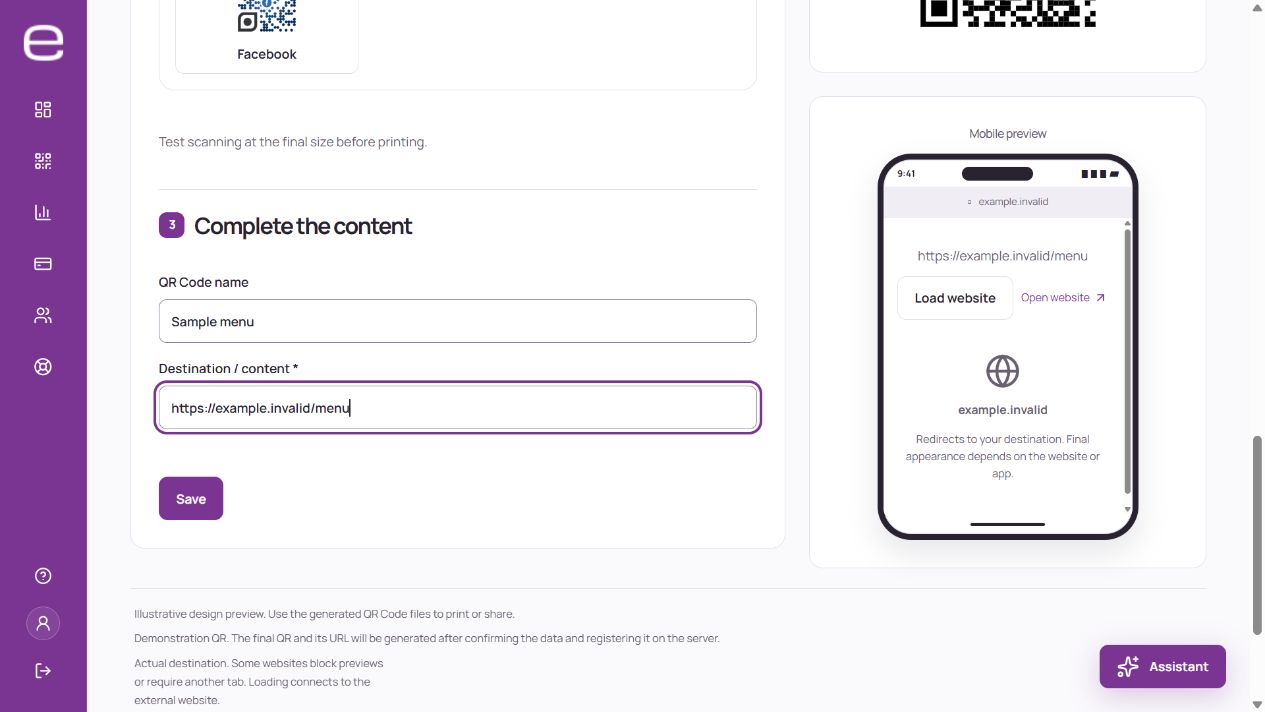
- Open QR Codes and choose New QR Code.
- Select an available type and enter the requested content. For a link, for example, check the full address.
- Review the name and preview. If you customize colors or a logo, keep the code readable.
- Save and wait for the confirmation shown by the system.
- Scan the QR with your phone and check that the expected content opens. Do this before downloading artwork for printing or sharing the code.
Can’t see the creation option?
Check the selected account, your role and the plan’s active QR limit.
If you used the website demo
The demo generates a direct QR in your browser. It does not save a dynamic QR in your account; use the steps above to create one.
Useful next steps
Dynamic and static QR Codes: what changes?
A QR Code is an image that a reader interprets to open an address or display information. A static QR stores its information in the symbol itself: changing the content requires generating and distributing another QR. A dynamic QR leads to a managed address, which directs the visitor to the configured content.
| Type | What the code contains | When content changes |
|---|---|---|
| Static | The information or direct destination. | Generate and distribute another QR. |
| Dynamic | A managed address leading to the configured content. | Permitted destination content can change while the QR address is preserved. |
Dynamic QR → managed address → destination content.
In your account
Creation in your E-lemento account is intended for dynamic QR Codes. The homepage demo generates a direct QR in the browser without creating an account resource. Legacy static codes do not acquire editing or statistics through automatic conversion.
If the material is already printed
A dynamic QR lets you update the destination while preserving its public address, subject to type, permissions and plan. This helps with printed material. Operation still depends on the QR and account status. Changing the image or design requires distributing new artwork; updating content does not change paper already printed.
Useful next steps
How do I edit an already printed QR?
You can update a dynamic QR’s destination without replacing the printed code when editing is available for its type, your role and the account.
Before editing
Select the correct account and find the QR used on the material. Check its name, type and current destination. Keep the previous information in case you need to check the change later.
Step by step
- Open the QR in the QR Codes area and access content editing.
- Change the address or other details supported by that type. For a file, check that you are selecting the correct version.
- Keep the public address identifier unchanged. Renaming a QR to organize your account is different from changing that address.
- Save and wait for the result shown by the application.
- Scan a copy that was already printed and check the content it opens, rather than just whether the camera recognizes the image.
Content or appearance?
Updating the destination does not change the QR artwork on paper. To change colors, a logo or a frame on physical material, download the new artwork and print it again. A static QR cannot change its encoded information without generating another symbol.
If editing is unavailable, check your role, the QR type and status and the plan’s features before creating a replacement.
Useful next steps
How to download, print and test a QR Code
Download the saved QR file from your account and test a sample on the final material before approving the print run. Reading it on screen does not replace that test.
1. Check and download the file
- Open the QR in the correct account and check its destination and current status.
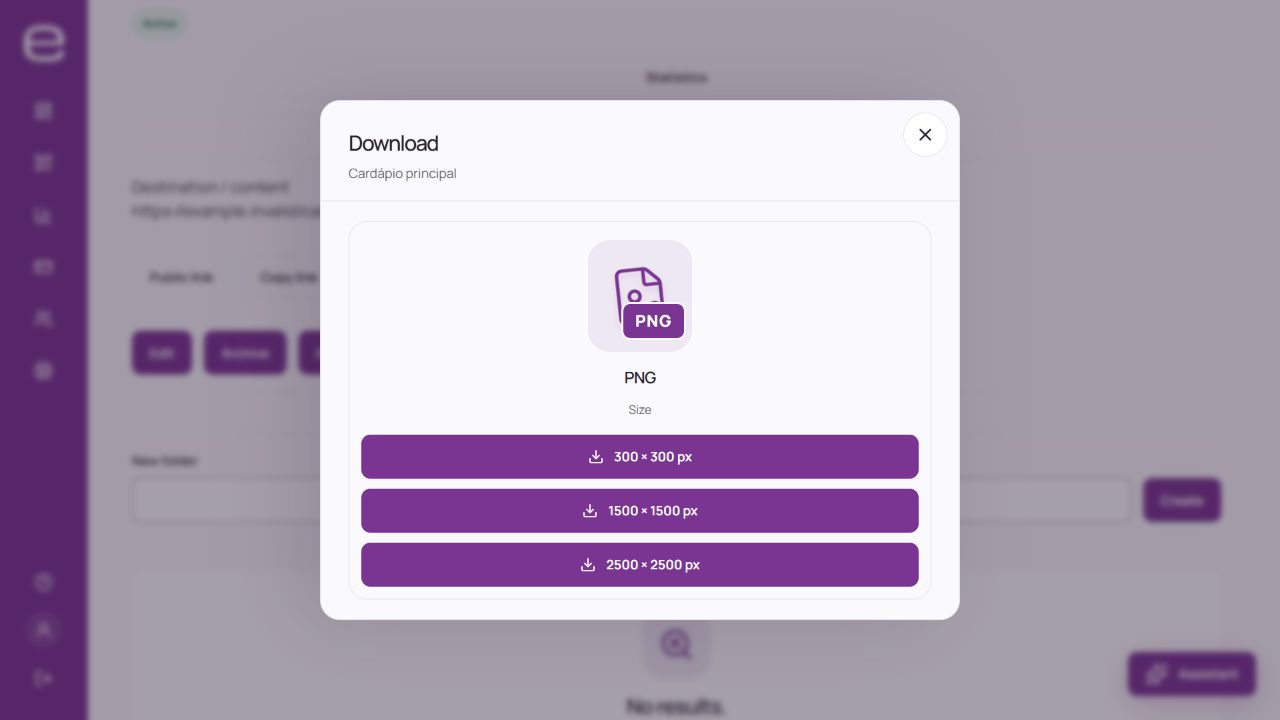
- Open the download options and choose a format and size available in your plan.
- Use the downloaded file in your artwork. Avoid replacing it with a screenshot of the preview.
2. Prepare the print
- Keep good contrast between the code and background.
- Leave a clear area around the symbol, without text, borders or artwork entering the margin.
- Keep its proportions: do not stretch, crop or cover parts of the code.
- Choose the size for the reading distance, symbol density and finish. No single measurement in centimeters guarantees every scan.
The current editor uses a background color and does not provide a transparency control. If you edit the file in another program, test the result against its final background.
3. Test a sample
- Print at the intended size, on the intended material and with the final finish.
- Test with more than one device, in the expected lighting and at the expected distance.
- Check that the correct content opens and whether it requires additional access.
- If it fails, adjust the artwork or size and repeat the sample test before the full run.
If the code does not open, also check the QR status, account conditions and the destination’s availability.
Useful next steps
How to customize colors, design and your logo
When editing a QR, use the available appearance controls to adjust colors, design elements and your logo. The preview helps compare options, but check the final file as well.
Step by step
- Open the QR in the correct account and enter the editor.
- Use the available controls to adjust colors, design and logo.
- Check contrast between the code and background and preserve the position markers.
- Save the change and download the artwork you will use.
- Test the final file on different devices and, for print, make a sample at the intended size.
Choosing a logo
Logo size can be adjusted within the editor’s limits. A simple, sharp image with a suitable background usually works better than a highly detailed design. If colors look different, check that the image was prepared in RGB and review the exported file.
Before printing
Error correction is part of symbol generation, not permission to cover a percentage of the image. The editor does not provide a manual control for that level. No artwork is guaranteed to scan, even with error correction. Preserve contrast and positioning marks, test on different devices and print a sample. Changing appearance in the system does not update a design already printed; download and distribute new artwork to use the visual change.
Useful next steps
How to organize QR Codes in folders
Use folders to find QR Codes for a campaign, product or team more easily. Folders belong to the selected account.
Step by step
- Open QR Codes and check that you are in the correct account.
- In folder management, create a folder with a name that identifies the group.
- When organizing QR Codes, choose the destination folder using the options available to your role.
- Open the folder and check that it contains the expected items.
Does moving to a folder change the QR?
A folder organizes the list. It does not change the QR’s public address or add access protection to its content.
Can I create several QR Codes at once?
The current workflow creates QR Codes individually. Selecting several items in the list is different from importing a spreadsheet or generating codes in bulk. If you need many QR Codes, describe the task to support to find out which options are actually available.
Useful next steps
Public address, sharing and QR access
A dynamic QR points to a public address managed by E-lemento. Check the QR’s own link in your account to share it or verify its destination. Older codes may use different domains; that difference neither proves an error nor guarantees the code is active. Test that specific QR’s address.
Checking the address
- Open the QR in the correct account.
- Find and copy the public address shown by the system.
- Open that address and check its destination.
- If material is already in circulation, preserve the QR identifier when updating permitted content.
If the QR is already in circulation
Preserve the public identifier of material already distributed. The current workflow does not offer unrestricted changes to an existing QR’s short URL. You can update permitted content without reconstructing or guessing the address.
Who can open the content
Anyone receiving a QR or its link can open public content and share it again. A password-protected account does not make a public destination private. The destination website may have its own authentication and rules. If advertising appears, check the opened address, reader and destination content; do not assume it came from E-lemento merely because it appeared after scanning. Send support the QR and a description, without credentials.
Useful next steps
Does my plan limit created or active QR Codes?
The commercial quota limits active QR Codes, not a balance that accumulates every month. Check the current catalogue and offer features. Archiving can release a slot but interrupts that QR availability. Plan changes may require selecting which codes remain active; a released slot does not allow all previous codes to become active again.
Checking your capacity
- Check the selected account before comparing limits.
- Review active QR Codes and the offer’s features in billing or the plan catalog.
- Before archiving, reactivating or changing plans, check which codes must keep working.
Before changing plans
To compare capacity, formats and features, see Plans and pricing on the website or the offer available in account billing. Before increasing your plan, check that you are in the account where you intend to create QR Codes.
Useful next steps
How the free plan works
What is included
The free plan lets you start with the features and active QR allowance shown in the current catalog. Check the plan comparison for creation limits, download formats and availability of statistics, location and collaboration. A feature appearing in an example does not mean it is included for free.
When a paid period ends
A new account without a paid purchase uses the free conditions. When paid entitlements end, access follows the applicable plan and QR Codes above its capacity may be archived. Canceling renewal alone does not mean the paid period has ended.
Limits belong to the account
Allowances belong to the account and do not accumulate each month. If you participate in another company’s account, features there depend on that account’s plan and your role, rather than your personal plan. To increase capacity, review a paid offer before confirming the purchase.
Useful next steps
How to change plans and review the adjustment
The owner can review a plan change in the account’s billing area. Before confirming, check the full proposal: plan, period, final amount and QR Codes that will remain active.
Step by step
- Select the account whose subscription you want to change and open billing.
- Choose a change option available to that account.
- Check the new plan, duration and stated start date.
- Review the offer amount, eligible credit and total due.
- If capacity is reduced, check the QR Codes selected to remain active and the effects on guests and statistics.
- Confirm only after reviewing the details, then follow the steps shown by the system.
Understanding the adjustment
For a change that starts a new cycle, the system shows the eligible credit for unused time according to the account’s entitlements and operation rules. Check the displayed breakdown; this amount is not a balance available for withdrawal.
A preview does not confirm the change. Where payment is required, the change depends on the confirmation required by the workflow. For reductions without a new payment, check whether they apply immediately or when the current entitlement ends.
Found a difference?
Before starting another purchase, open a support ticket with the proposal or invoice reference and explain what needs checking.
Useful next steps
Will my QR keep working after the plan ends?
Before distributing long-lived material
Do not assume unrestricted continuity. Operation depends on QR state, account eligibility, current rights and destination availability. Check the account period and conditions before distributing long-lived material. Archived or removed does not mean active. Any applicable additional period must be checked for the account; another provider's terms do not apply.
When canceling, reducing or purchasing again
There is no promise of perpetual validity. Canceling renewal alone does not automatically end an already-paid period. When paid entitlements end or capacity is reduced, check which QR Codes remain active. A new purchase may allow archived codes to be reactivated within the new allowance; it does not mean every code is automatically reactivated. Deleted, suspended or otherwise blocked codes require separate assessment.
Useful next steps
How do I check billing or request cancellation?
Open the account’s subscription details to check charges or stop future renewals. Stopping renewal, requesting a refund and closing the account are different actions.
To check a charge
- Sign in as the owner and select the account related to the subscription.
- Open billing and find the invoice or operation.
- Check the period, amount and current status. An issued invoice does not prove confirmed payment.
- If verification is underway or something differs, read the payment troubleshooting guidance before starting another attempt.
To stop renewal
- Check whether automatic renewal is enabled and a valid payment authorization exists.
- Use the cancellation option available for the subscription.
- Review the confirmation, end date and stated effects.
- Confirm in the displayed workflow and check the recorded result.
Stopping renewal alone does not automatically end an already paid period. If renewal is already stopped, check that status before reactivating it or purchasing another period.
When to contact support
If the option is unavailable or the situation remains unclear, the owner can open a billing ticket. Include the invoice or subscription reference. Asking the AI alone does not apply a cancellation or refund. Available payment methods are those actually shown at checkout.
Useful next steps
Payments, invoices and updating your card
Use the account’s billing area to view invoices and the payment methods for its subscription. The owner should check the operation’s status before paying again or updating an authorization.
View an invoice
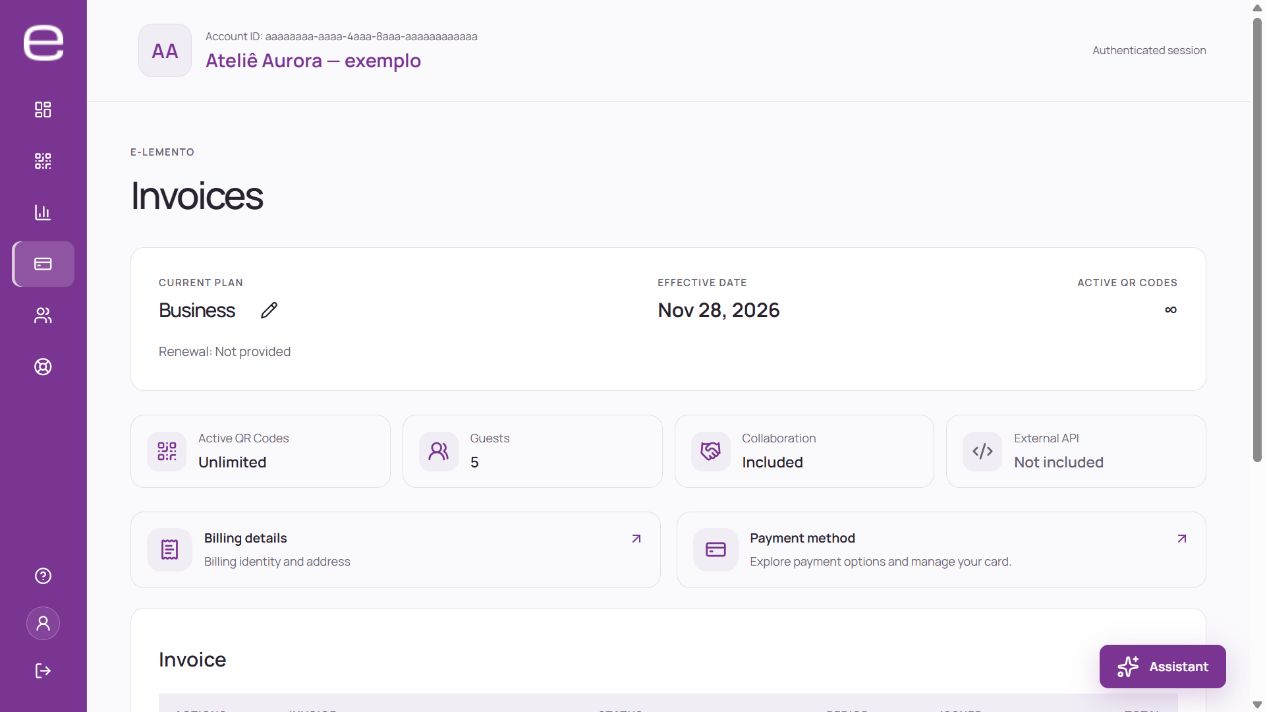
- Select the correct account and open its invoices.
- Find the subscription and check the period, currency and total.
- Open the details to check its current status and available documents.
An invoice or payment receipt does not replace a Brazilian tax invoice. For now, request the tax invoice through the platform’s support area.
Check how to pay
Payment methods are those displayed at checkout. New purchases may use Stripe; earlier subscriptions may remain linked to PayPal. Use the workflow for your subscription rather than trying to change all charges through one provider.
The commercial catalog is shown in Brazilian reais. Currency conversion and any issuer fees depend on the card and transaction. Review the stated amounts before confirming.
Update the payment method
Use the option available in billing or with the provider shown for your subscription. Check the account and the update result. A saved card or renewal indicator alone does not prove valid authorization for every charge.
If an attempt or verification is underway, check the invoice status before starting another payment. Full card numbers, security codes and passwords belong in the secure payment environment, never in tickets or emails.
Useful next steps
Payment failed or is still being verified
First check the invoice status in the correct account. An error message does not prove that no amount was authorized, and a card authorization does not confirm that the plan has been applied.
Choose guidance for the displayed status
| Situation | What to do |
|---|---|
| Payment being verified | Follow the original attempt and wait for the stated result before paying again. |
| Bank authentication requested | Complete the original payment’s step in the secure environment provided. |
| Payment declined | Check the details with the provider and contact the bank if needed. Avoid repeated attempts. |
| Amount or status differs | Check the invoice and ask the team to review it before starting another purchase. |
To request a review
- Open a ticket in the account related to the payment.
- Include the invoice reference, approximate time and displayed message.
- If you attach a screenshot, remove sensitive details before sending it.
- Review, confirm submission and follow the ticket.
The team will check the operation. Asking the assistant alone does not confirm payment, a refund or application of the plan. Never send passwords, authentication codes or full card details.
Useful next steps
Cancellation and refund requests
Canceling renewal, closing an account and requesting a refund are different requests. The owner should review the purchase and use the available billing workflow or open a ticket with the relevant invoice or payment. Review and confirm the submission shown by the system.
Different requests
| Request | Meaning |
|---|---|
| Cancel renewal | Concerns the next renewal; it does not itself end an already-paid period. |
| Request a refund | Requests payment review and does not prove approval. |
| Close the account | A separate operation affecting access and resources. |
What the review considers
Time without QR usage does not create an automatic refund. Assessment must consider the offer, purchase date, reason, applicable legal rights and what has actually been paid or refunded. It is also incorrect to state that every request after seven days will be refused regardless of the circumstances.
Following the outcome
A request does not prove approval or refund processing. If a refund is made, its effect on access depends on the payment and entitlements affected; do not assume every QR in the account will be disabled. The team will communicate the outcome through support. Do not send full card details or make a new purchase solely to try to correct an earlier charge.