Made to connect.
How do I edit an already printed QR?
You can update a dynamic QR’s destination without replacing the printed code when editing is available for its type, your role and the account.
Before editing
Select the correct account and find the QR used on the material. Check its name, type and current destination. Keep the previous information in case you need to check the change later.
Step by step
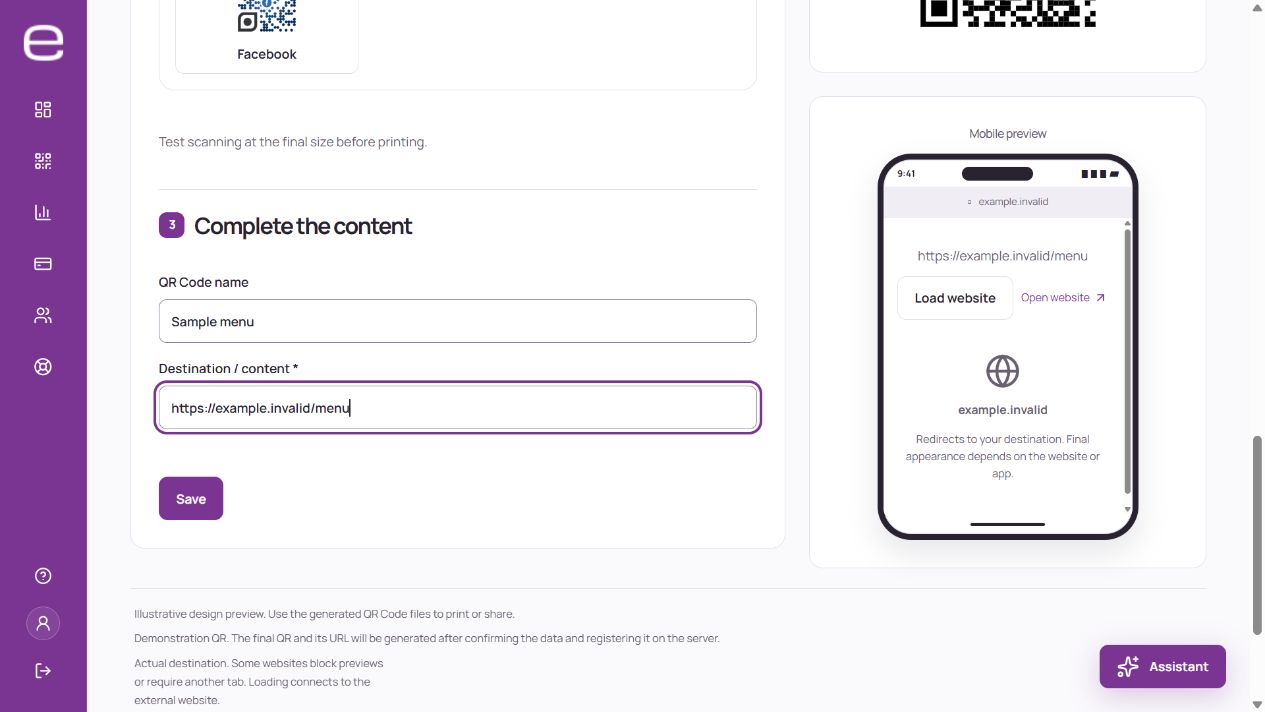
- Open the QR in the QR Codes area and access content editing.
- Change the address or other details supported by that type. For a file, check that you are selecting the correct version.
- Keep the public address identifier unchanged. Renaming a QR to organize your account is different from changing that address.
- Save and wait for the result shown by the application.
- Scan a copy that was already printed and check the content it opens, rather than just whether the camera recognizes the image.
Content or appearance?
Updating the destination does not change the QR artwork on paper. To change colors, a logo or a frame on physical material, download the new artwork and print it again. A static QR cannot change its encoded information without generating another symbol.
If editing is unavailable, check your role, the QR type and status and the plan’s features before creating a replacement.