Made to connect.
Payments, invoices and updating your card
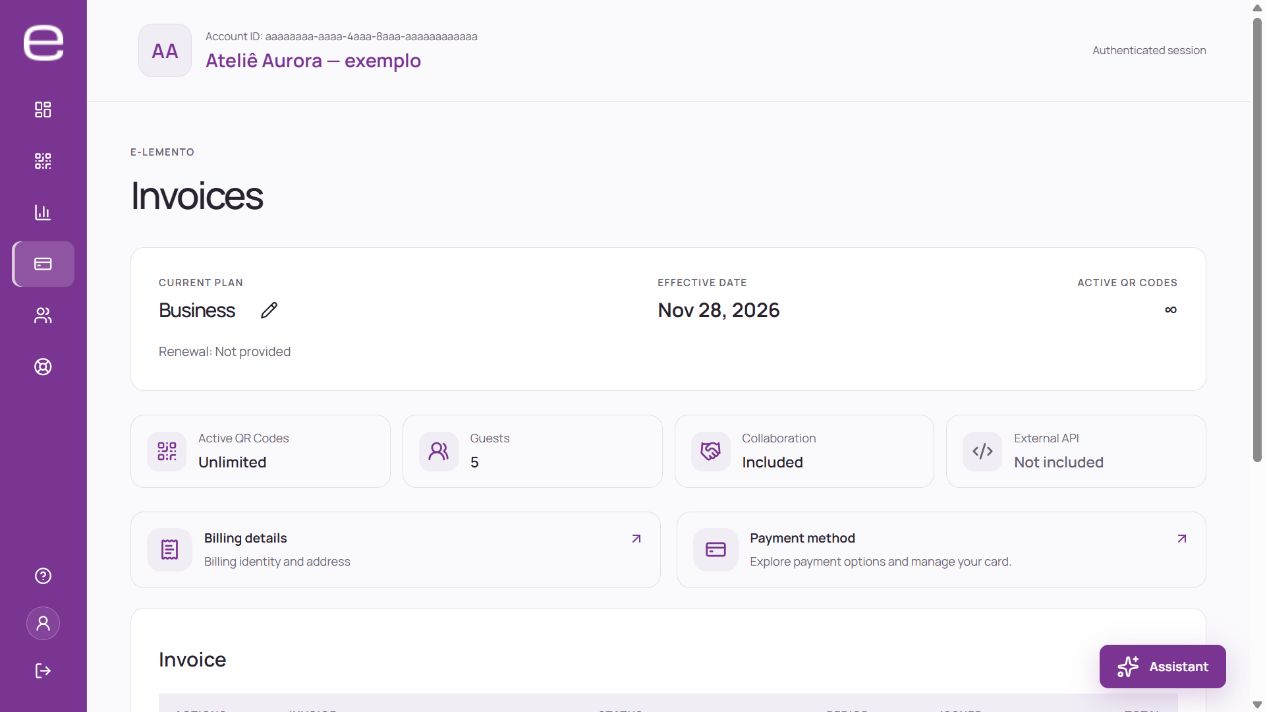
Use the account’s billing area to view invoices and the payment methods for its subscription. The owner should check the operation’s status before paying again or updating an authorization.
View an invoice
- Select the correct account and open its invoices.
- Find the subscription and check the period, currency and total.
- Open the details to check its current status and available documents.
An invoice or payment receipt does not replace a Brazilian tax invoice. For now, request the tax invoice through the platform’s support area.
Check how to pay
Payment methods are those displayed at checkout. New purchases may use Stripe; earlier subscriptions may remain linked to PayPal. Use the workflow for your subscription rather than trying to change all charges through one provider.
The commercial catalog is shown in Brazilian reais. Currency conversion and any issuer fees depend on the card and transaction. Review the stated amounts before confirming.
Update the payment method
Use the option available in billing or with the provider shown for your subscription. Check the account and the update result. A saved card or renewal indicator alone does not prove valid authorization for every charge.
If an attempt or verification is underway, check the invoice status before starting another payment. Full card numbers, security codes and passwords belong in the secure payment environment, never in tickets or emails.